
Guide to Remote Access
Choose your Remote Connection


Remote Access Portal
This portal allows you to connect to your in-office computer or server using the NinjaOne Remote or the Remote Desktop Connection app.
Which Connection do you Use?

.svg)
NinjaOne Remote Instructions
Accessing a computer while out of the office (off-site) using NinjaOne Remote
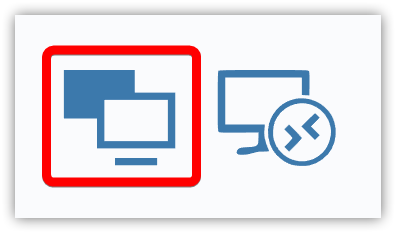
Navigate to our remote access portal by clicking here. Once you've signed in, you'll see your computers. To connect with NinjaOne Remote, click the red outlined icon (as seen in the image to the right).
Don't have NinjaOne Remote installed?
Once you click the NinjaOne Remote icon to connect, there will be a banner that appears at the top of the page to download NinjaOne Remote. Click "Download NinjaOne Remote for Windows". Once you've installed NinjaOne Remote, follow the connection steps again and you'll be on your way.

Remote Desktop Instructions
For the best experience, you’ll want to make some changes to your connection.
.png)
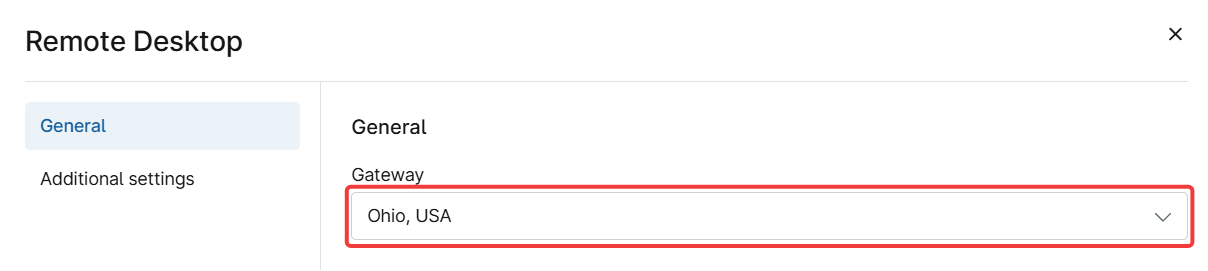
Change the "Gateway" to "Ohio, USA".
Change "Colors" to "16 bits".

Optional Printer redirection
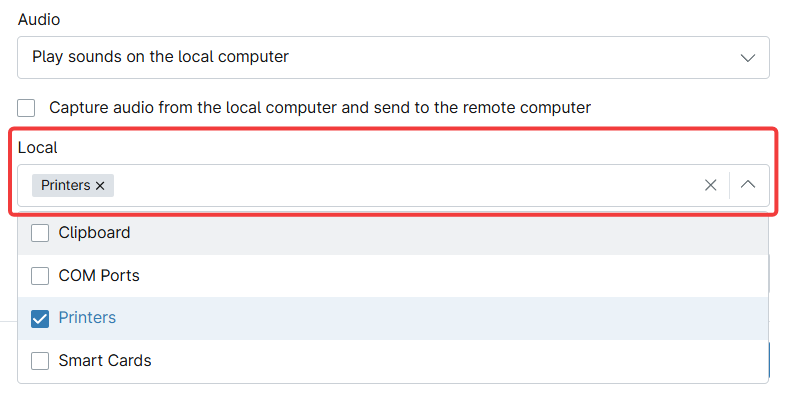
Under Additional Settings, scroll down more, then click on the Local box, this allows you to pick the option Printers, which will connect your computer's default printer to the remote computer.
Remote Desktop Server Connection
Accessing your local Remote Desktop server (on-site)
If your company uses a Remote Desktop server, the connection process while in the office is different than connecting offsite.
To access the server, you'll need to open the Remote Desktop Connection app.
Normally, your Remote Desktop Connection app is pinned to your Start Menu, Taskbar or there’s a shortcut on the Desktop.
After opening the Remote Desktop Connection app, you can change the connection details by selecting Show Options

The Computer field is the name of the computer you are connecting to.
Examples:
Computer-Name
Computer-Name.domain.lan
The User name field is your company's domain name followed by a backslash, "\", and your computers user name.
Example:
DOMAIN\Username

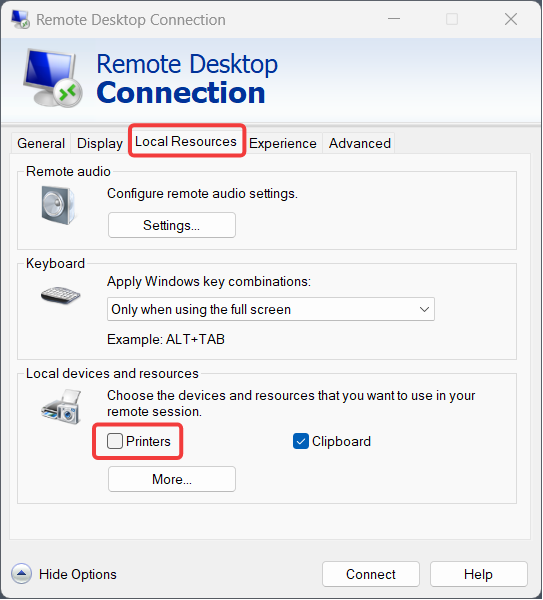
Optional: Remote PrintingTo enable Remote Printer Redirection, select the Local Resources tab, then tick the Printers box
Remember to Save your default connection settings